Actions and approvals
Any change DataPulse makes to your platform is an action: stop a warehouse, resize a cluster, repair a run, add a timeout, or schedule a recipe. Actions follow one safe path, whichever page they start from.
How it works#
Each step adds one row to an append-only ledger. Rows are never edited or deleted, so the history is a reliable audit trail.
Risk and who may approve#
| Risk | Examples | Who can approve and execute |
|---|---|---|
| LOW RISK | Stop a warehouse that has no running or queued query, set auto-termination, repair a run | An operator or a cleansing engineer whose access includes the action's module, or an admin |
| HIGH RISK | Terminate a cluster, resize a cluster, stop an app, pause a job schedule, add a timeout or retries, stop a busy warehouse, run a productionized recipe | Admin only |
How DataPulse knows a warehouse is idle. It asks Databricks for the queries running or waiting on that warehouse. If there are none, the stop is low risk. If there is one, or if DataPulse cannot read the query history, the stop is high risk. The confirm dialog shows the evidence (idleEvidence) and the number of active queries. DataPulse checks again when you press Execute: if the warehouse has become busy since you proposed the stop, nothing runs, the action goes back to Proposed as high risk (the message is The resource is no longer idle, so this needs an administrator), and an admin decides.
Terminating a cluster is always high risk. Databricks does not report when a cluster last did work, so DataPulse cannot prove a cluster is idle right now. To reclaim idle clusters without an admin, use the set auto-termination action (low risk): the cluster then stops itself. A budget in auto_idle mode only proposes a cluster termination for an admin.
Every action belongs to one module (Spend, Pipelines, Data Cleansing, and so on), and your access is checked against it. An operator limited to Spend can approve a Spend action, and cannot approve a Pipelines one. A disabled button explains why. For example, hover Approve as an operator on a high-risk action: High-risk actions need an app admin. On an action outside your modules it reads Your access does not include Pipelines.
A cleansing engineer or an operator who asks to productionize a recipe sends a request: it appears here as a high-risk proposal, and an admin approves and runs it. The schedule belongs to the person who asked.
Walkthrough 1: approve and run an action#
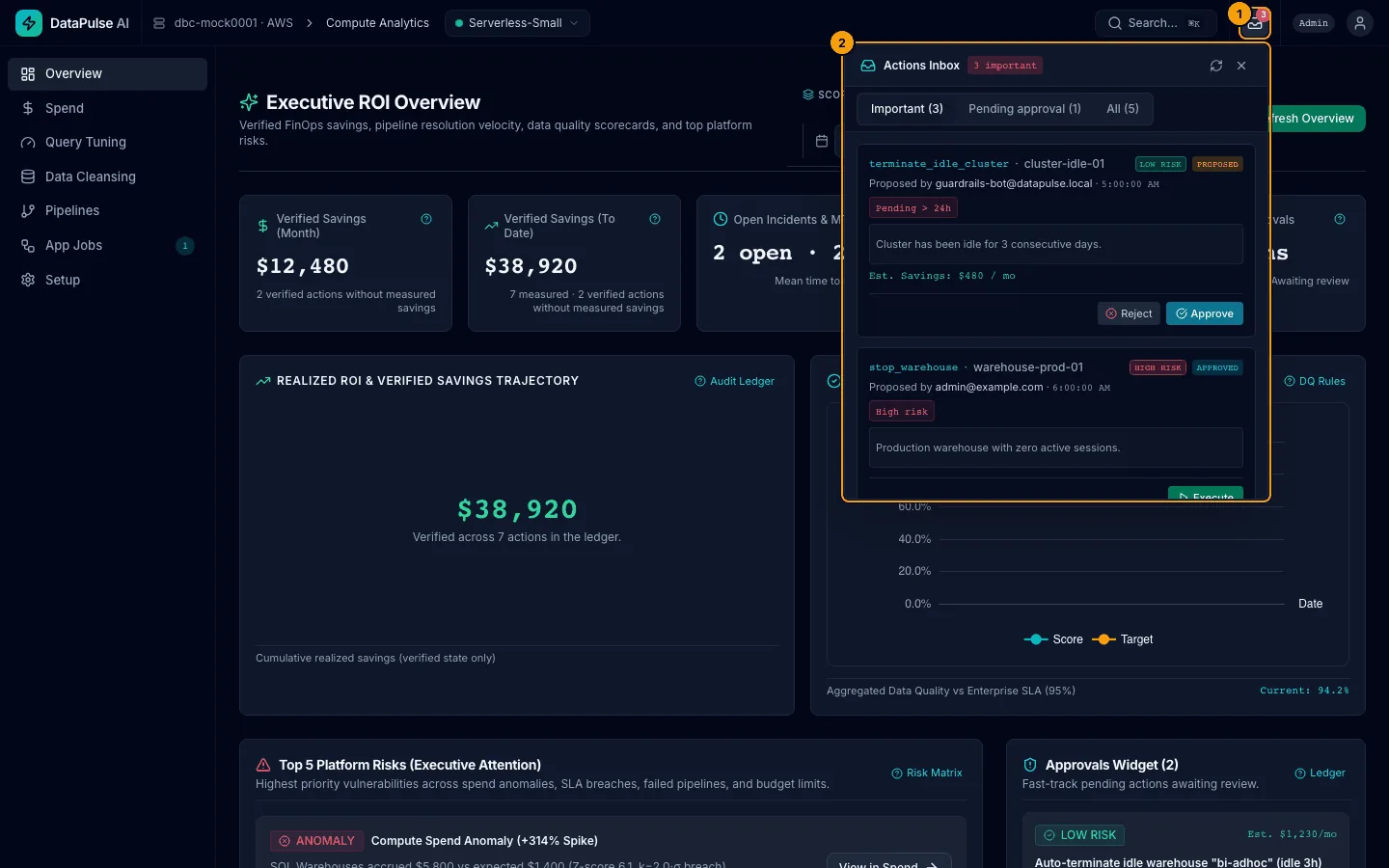
- Click the Actions inbox button. The number on it is how many Important actions need you (it does not count every pending action).
- Actions Inbox has three tabs, each with its count: Important (the default), Pending approval and All (the last 30 days of history).
- On a proposed action, read the target, the risk, the reason chips and the preview note. Then choose Approve or Reject. A proposal that is not important waits under Pending approval.
- An approved action shows Execute. Click it to run.
- An executed action shows Rollback. Click it to undo.
You can also approve from the Overview Review Action button or from a confirm dialog on Spend or Pipelines.
What "Important" means#
An action is Important when at least one of these is true. The red chips on its card name every reason that applies.
| Chip | Why it is Important |
|---|---|
| High risk | The action is high risk. |
| Failed | It failed, or its rollback failed. |
| Verification due | It ran at least 7 days ago (your admin can change the window) and is waiting for someone to press Verify. |
| Incident | A Pipelines action was proposed on a job that has an open or acknowledged incident. |
| SLA breach | The same, and the incident came from a data SLA. |
| Budget breach | A spend budget guardrail proposed it. |
| Pending > 24h | It has waited more than 24 hours for a decision. |
Everything else is normal and shows under Pending approval or All. The inbox, its counts and the Teams alert all use this one list. Only the last 30 days are shown: an action whose last event is older is no longer listed or counted (it stays in the ledger).
The confirm dialog#
Every dialog shows four things: the change, the risk, the downstream impact, and the rollback plan. It has one primary button and a Cancel.
Walkthrough 2: verify an executed action#
An executed action shows Verify only once its observation window has passed (7 days unless your admin set DATAPULSE_VERIFY_DAYS). Until then the button reads Verify after and the due date, and is disabled, and the card says Observation window active. When it is due, click Verify: DataPulse measures the effect against the window before the action. Nothing verifies an action on its own, so a due action stays in the Actions inbox under Verification due until someone presses the button. Only verified actions count toward Verified Savings.
Walkthrough 3: background jobs#
Background work (batch cleaning, the audit, health checks) is on the App Jobs page, not in the inbox. See App Jobs.
What each status means#
| Status | Meaning |
|---|---|
proposed | Waiting for a decision. |
approved | Allowed, not run yet. |
executed | Ran. The saving is still an estimate. |
verified | A measurement after the observation window confirmed the effect. Only these count as Verified Savings. |
rolled_back | Undone. |
failed | Stopped by an error. No partial change is kept. |
rejected | Turned down. |
Change windows and notifications#
Your admin can restrict when actions may run (for example 02:00–06:00 UTC). Outside the window you get OUTSIDE_CHANGE_WINDOW; try again inside it. Admins can also send action events to a Databricks notification destination. See the admin guide.