Pipelines
Pipelines is one board for every Lakeflow job and every Lakeflow declarative pipeline across your workspaces. It shows what is failing, what is stuck, what it cost, and what breaks downstream. In the left navigation it is Pipelines.
Each row carries a Job or Pipeline badge next to its id, so you can always tell which you are looking at. DataPulse watches and repairs your pipelines; it never writes or changes their code.
How it works#
A job or pipeline is compared with its own history, not a fixed number. Stalled means it has run longer than twice its own p90 (the run time that 90% of its runs beat). A job has runs; a declarative pipeline has updates. The board treats them the same way.
Walkthrough 1: read the board#
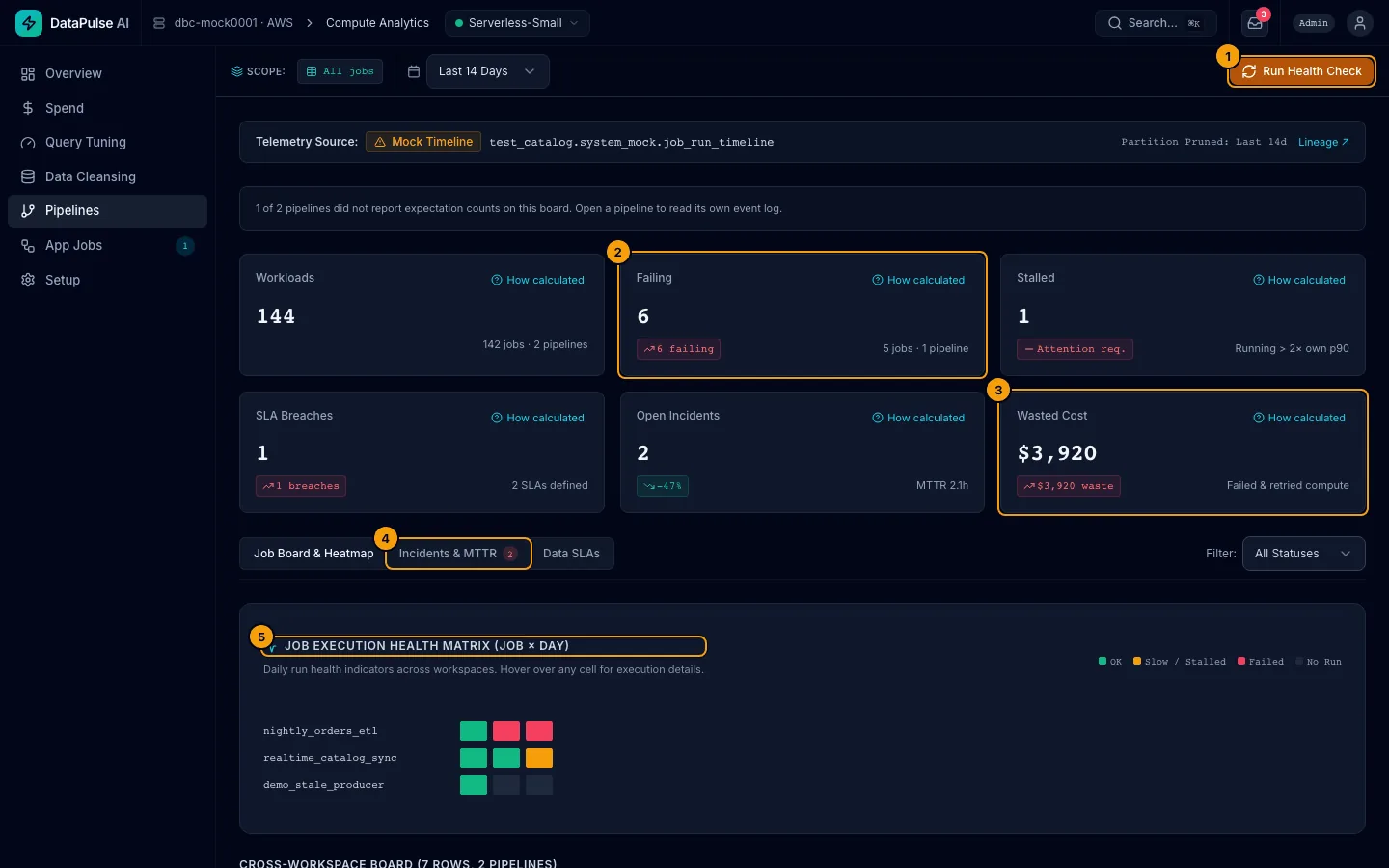
- Run Health Check. Checks your data SLAs now. Operators and admins only.
- Failing card. Jobs whose latest run ended in error.
- Wasted Cost card. Cost of failed and retried runs.
- Sub-tabs. Job Board & Heatmap, Incidents & MTTR, Data SLAs.
- Job Execution Health Matrix (Job × Day). One row per job, one square per day. Legend: OK, Slow / Stalled, Failed, No Run. Hover a square for details.
What each number means#
| Number | Meaning |
|---|---|
| Workloads | Jobs and declarative pipelines seen in the window, across workspaces. The subtitle gives the split, for example "142 jobs · 2 pipelines". |
| Failing | Jobs whose latest run ended in error, plus pipelines whose latest update ended FAILED. |
| Stalled | Jobs or pipelines running longer than 2× their own p90. |
| SLA Breaches | Data SLAs currently missed (freshness or row count). |
| Open Incidents | Incidents not yet resolved, with MTTR (mean time to resolution). |
| Wasted Cost | Dollars and DBUs spent on failed and retried runs. |
| Duration p50 / p90 | Typical run time, and the run time 90% of runs beat. |
| 30d Total Spend | The job's cost in 30 days. |
| Cost of Failure | The part of that cost from failed and retried runs. |
Status is always text, icon, and colour together: Failing, Stalled (>2× p90), Slow, Stale (SLA), and healthy. A pipeline update that was cancelled is not a failure: somebody stopped it, so there is nothing to diagnose or retry.
Walkthrough 2b: open a declarative pipeline#
Click Inspect on any row badged Pipeline. The drawer shows:
- Update history. Every update in the window with its state, how long it took, what started it, what it cost, and any table it fully refreshed.
- Failing flow. When an update failed, the flow (dataset) that failed and the error it reported, in its own words.
- Expectations. How many records passed, were dropped, and failed your expectations in the window. If these are blank, the reason is shown — most often that only the pipeline's owner may read its event log in Lakeflow.
- Cost and cost of failure. The pipeline's spend, and the part of it spent on updates that failed.
- Settings. Failure alerts, edition, the Unity Catalog target, and the owner.
- Hygiene. What DataPulse would change, and why.
What DataPulse checks on a pipeline#
| Check (the drawer shows each finding as a sentence) | What it means |
|---|---|
| No failure alert | A failed update notifies nobody. Add a notification with the update- and flow-failure alerts. |
| Development mode in production | The pipeline runs on a schedule (or continuously) with development mode on, so its compute stays up after each update and failed flows do not retry. |
| No expectations | The pipeline published rows in the window without checking any of them. |
| Continuous mode, few updates | The pipeline holds its compute between micro-batches but only records a few updates a day. A triggered schedule would release that compute between runs. |
A check that DataPulse could not run says so. It never reports "passed" for something it did not read.
Repairing a pipeline#
Two actions, both through the approval flow, both acting as you (your own permission on the pipeline decides):
- Retry update (low risk). Starts a fresh update after a failed one. It reprocesses the same data and truncates nothing. Only available when the newest update actually failed — otherwise the button is disabled and says why.
- Full refresh a table (high risk). Truncates one table and rebuilds it from the source. DataPulse never offers this for the whole pipeline, because that would empty every table it owns.
Neither action can be undone. DataPulse can stop a running update, but rows it has already written stay written, and a full refresh empties its table before the first new row lands. The confirm dialog says this before you approve. To get previous data back, restore the table from its Delta history (DESCRIBE HISTORY, then RESTORE TABLE).
If a failed update needs explaining#
Diagnose with AI reads the failed update's own error text and the failing flow, and answers with a cause, a category, and fix steps. Unlike the job version, it also opens an incident on the pipeline (or joins one already open), so the failure gets an owner, an MTTR and a permanent record. Your table rows are never sent to the model — only the error text.
Walkthrough 2: open a job#
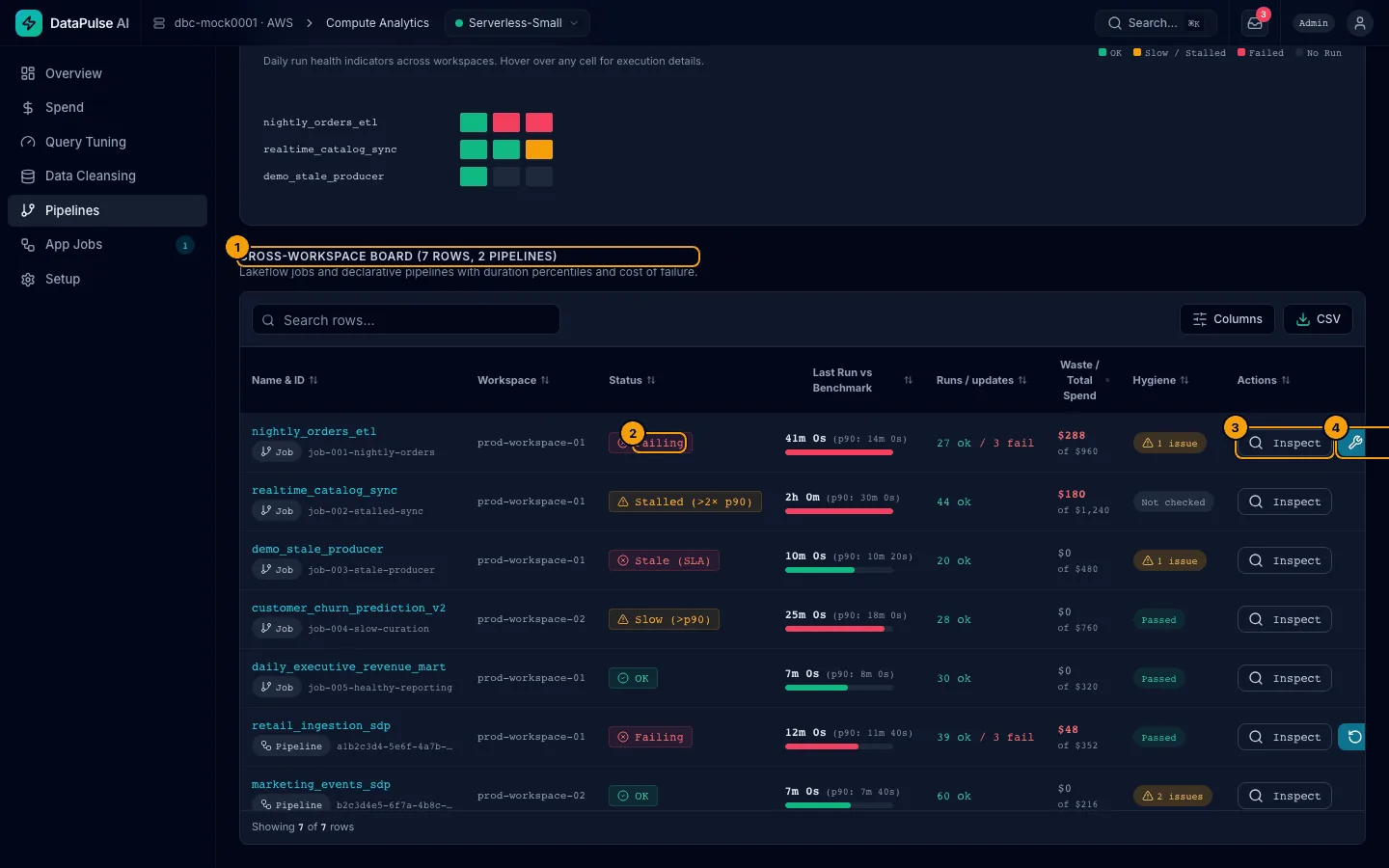
- Cross-Workspace Board. Sort, search, choose columns, or export CSV.
- The status pill, for example Failing.
- Inspect opens the job drawer. Clicking the job name does the same.
- Repair starts a repair of the failed tasks.
The Hygiene column counts setup problems: no timeout, no retry policy, no owner, or scheduled work on all-purpose compute.
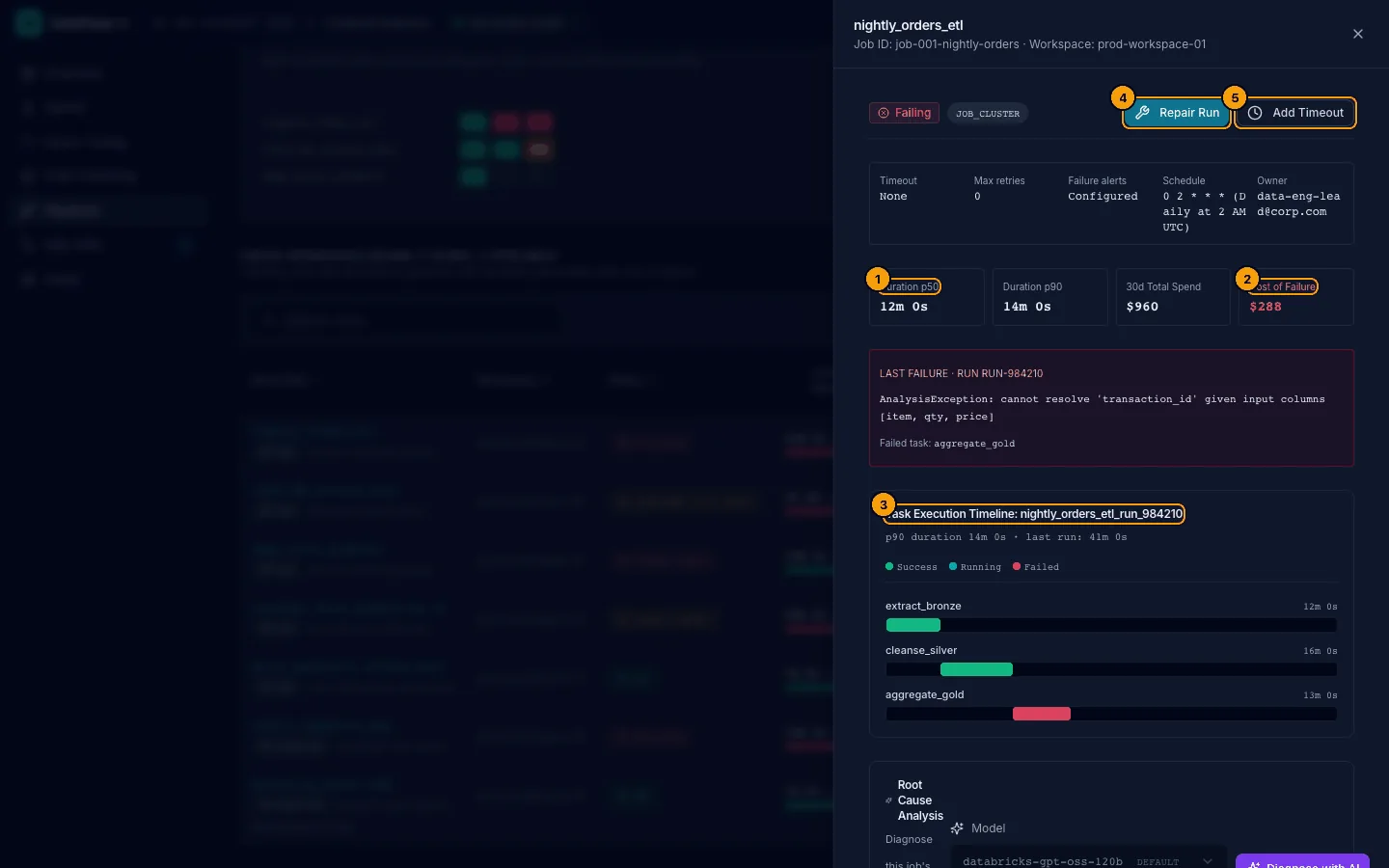
- Duration p50 and p90.
- Cost of Failure.
- Task Execution Timeline. Each task is a bar. Red is the failed one. You can see which task broke and how long each took.
- Root Cause Analysis (AI Diagnosis). The AI reads the error text and suggests a cause, fix steps, and a confidence. Treat it as a lead, not a verdict.
- Repair Run. Re-runs only the failed tasks. Low risk.
- Add Timeout. Stops a run that goes too long. High risk, so it needs an admin.
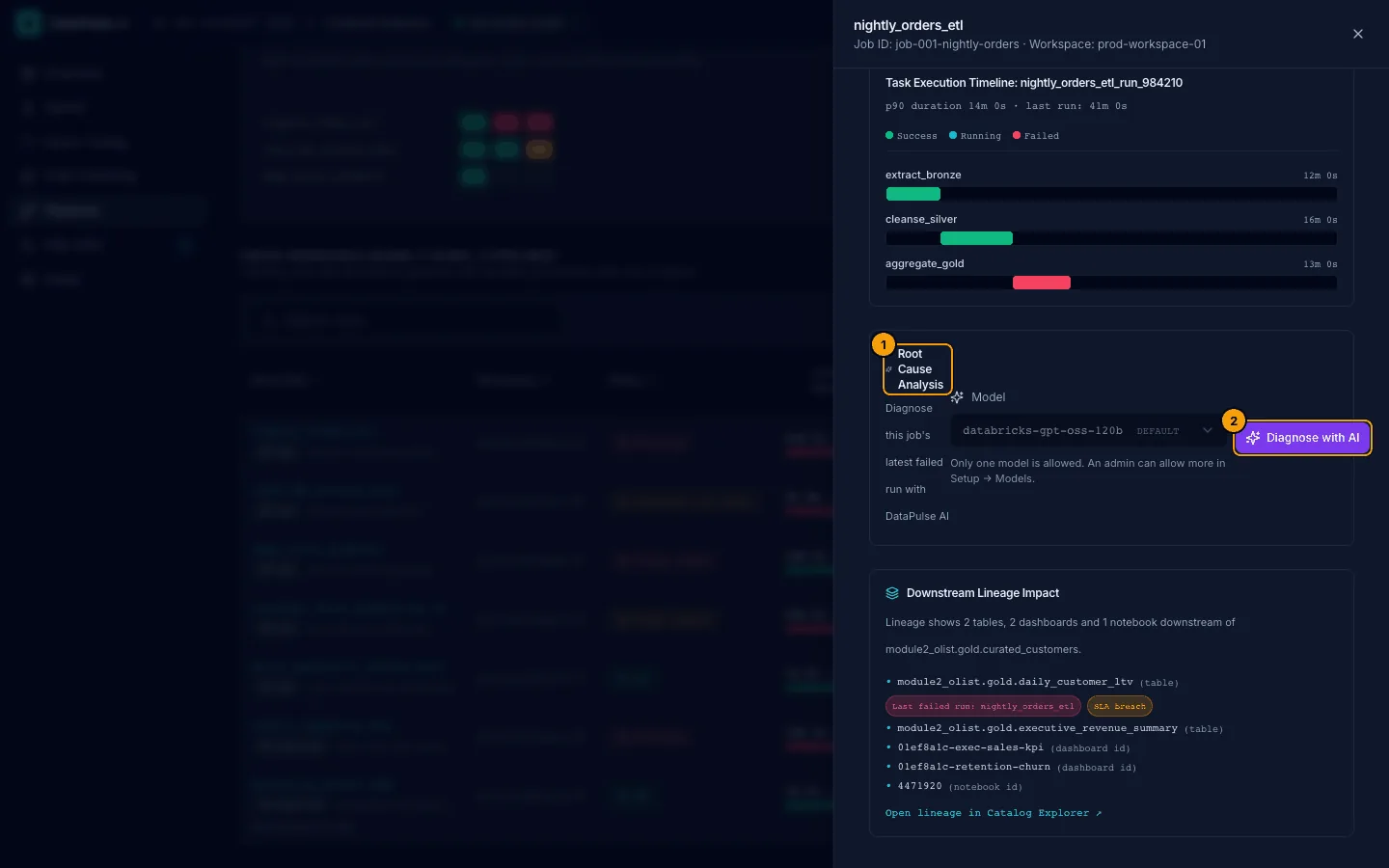
- Root Cause Analysis.
- Diagnose with AI. Choose a model and click it. It answers with a cause, fix steps and a confidence.
Below the timeline, Downstream Lineage Impact lists what Unity Catalog lineage shows downstream of the job's output table: the tables, and any dashboards, notebooks or jobs that read them (shown by id, because lineage carries no name). A table gets a Last failed run badge only when a job that is failing now writes it, and an SLA breach badge only when an SLA you defined on that table is breached; a table with neither has no badge. Open lineage in Catalog Explorer ↗ opens the full graph in Databricks.
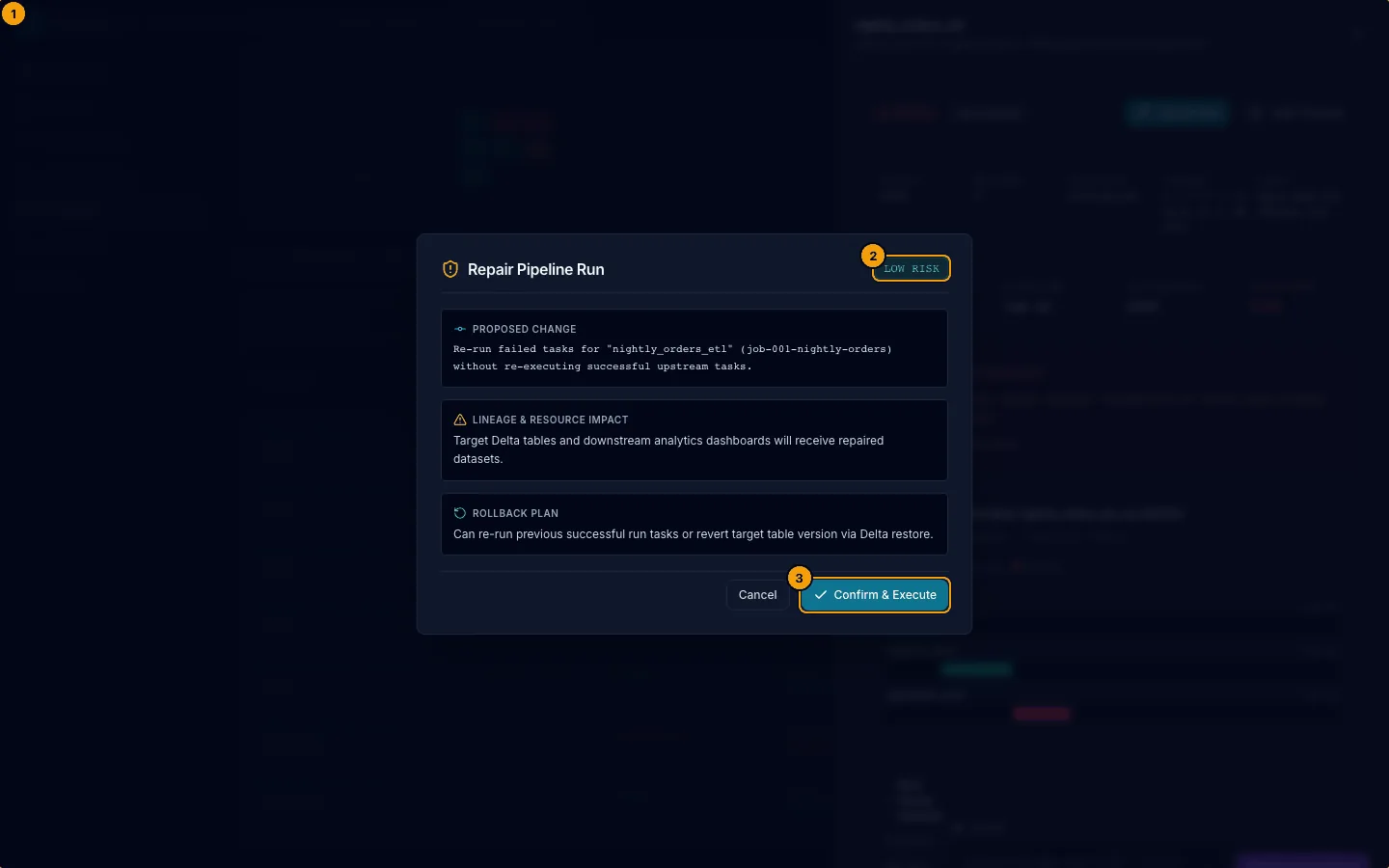
The Repair Pipeline Run dialog shows the change, LOW RISK, and the rollback note. Confirm & Execute sends it through the approval path.
Walkthrough 3: work an incident#
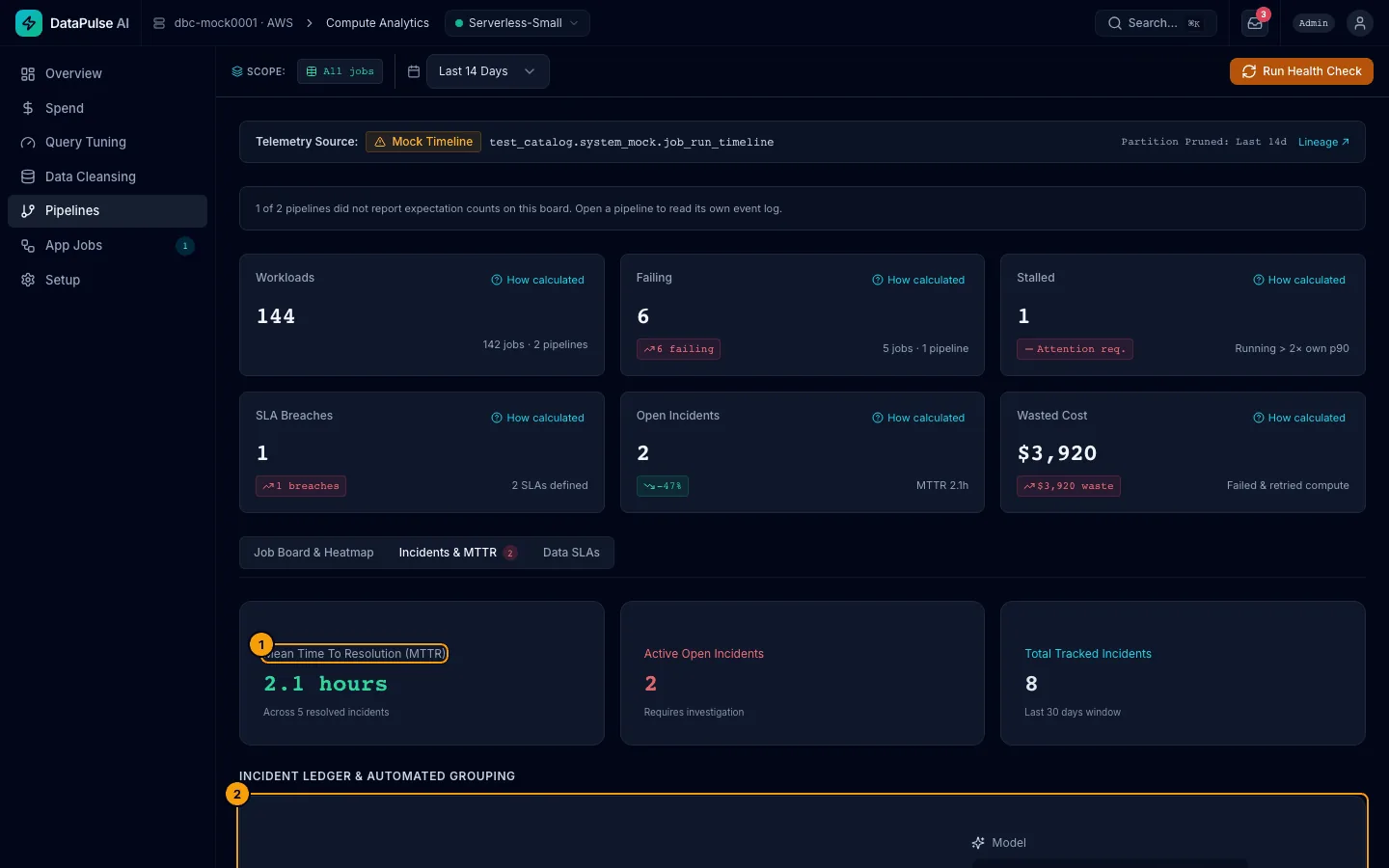
- Mean Time To Resolution (MTTR). The average hours to close an incident. Active Open Incidents and Total Tracked Incidents sit beside it.
- Each incident shows a status pill: OPEN, ACK, or RESOLVED, its source (
job,sla, orexpectation), and how many failures were grouped into it. - Ack says you are looking at it. Resolve closes it. AI Explain writes the root cause card. These buttons need the operator role or higher.
Failures of the same job within a two-hour window are grouped into one incident.
Walkthrough 4: keep a data promise (Data SLAs)#
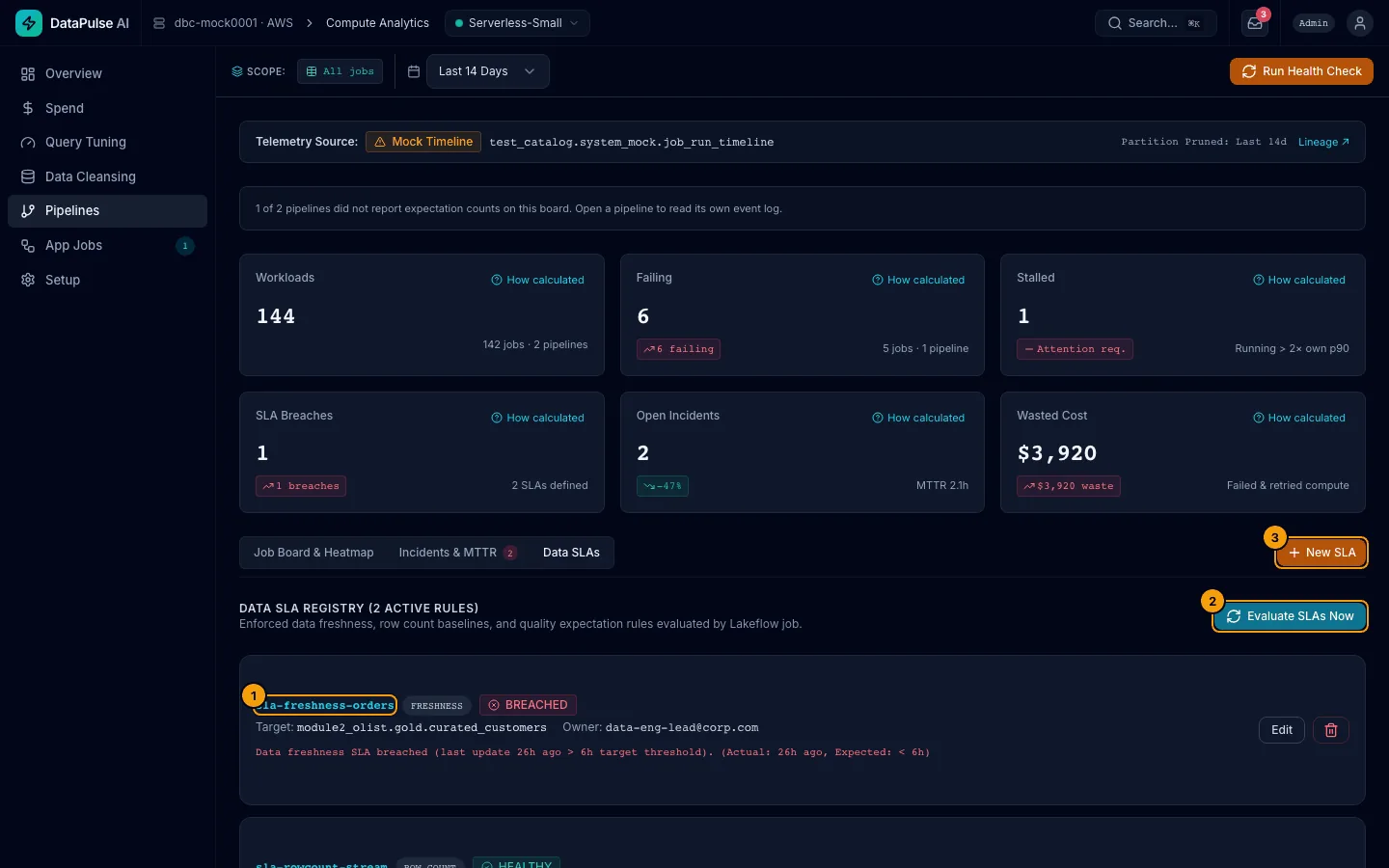
- Each SLA shows its type and status, for example FRESHNESS and BREACHED, the target table, and the owner.
- Evaluate SLAs Now checks them immediately.
- New SLA creates one (operator or admin). Choose the table, the type, and the limit.
| SLA type | It is breached when |
|---|---|
| Freshness | The table's last update is older than your limit. |
| Row count | The row count falls too far below its baseline. |
| Expectation | A data quality check on the table fails. |
Readers and cleansing engineers see SLA Configuration Restricted (Viewer Role): creating or changing an SLA needs the operator or admin role.
Walkthrough 5: see what breaks downstream#
There is no separate lineage page. DataPulse shows the downstream impact where you decide something, and leaves the full graph (column lineage, upstream tables) to Databricks Catalog Explorer.
- From a job. Open a job's drawer and read Downstream Lineage Impact. Click Open lineage in Catalog Explorer ↗ for the whole graph. Lineage ↗ in the telemetry strip at the top of the page opens the telemetry table the same way.
- Before an action. In the Actions inbox, Approve on an action that targets a table shows a line such as Lineage shows N tables … downstream of <table> in the confirm dialog when the proposal found any, with the same link.
- Before a cleansing run. In Data Cleansing, the Run and Productionize dialogs say Replacing <table> affects N tables … only when the target is an existing DataPulse table that something reads, and then show MEDIUM RISK. A new table shows no warning.
The counts come only from lineage: tables are always counted, and dashboards, notebooks or jobs only when lineage reported them. If lineage is not available you see a "lineage unavailable" message instead of a guess.
Known limitations#
| Limit | Open item |
|---|---|
For a job the app does not own, the hygiene checks (timeout, retries, alerts, all-purpose compute) need the job's settings. The app reads them as its own service principal, and only for jobs where that identity holds a permission. Where it does not, the Hygiene column reads Not checked and the drawer says the settings could not be read, and the message wrongly says that no grant changes this. A CAN_VIEW grant to the app's service principal on that job is the likely fix; it has not been tried live. | OI-237 |
If no pipelines appear#
If your account cannot read the Lakeflow pipeline tables, the board says so above the rows, with the exact GRANT to run. It never shows an empty list as if you had no pipelines. A pipeline is only shown to someone allowed to see it, so two people may see different rows.
Empty, denied, and failed states#
No jobs or pipelines found, No Data SLAs Configured, No open incidents, Pipeline Health Access Restricted, and Pipeline Telemetry Query Error are the messages you may see. See Troubleshooting.