App Jobs
App Jobs is where you watch the app's own background work: the four jobs DataPulse installs, every run it started on your behalf, and every recipe you have scheduled to run on its own.
It replaces the small Jobs icon that used to live in the header — the same information now has a full page, in the left sidebar directly above Setup.
How it works#
The page has three sections, top to bottom.
System Jobs#
The four jobs the DataPulse bundle installs in your workspace:
| Job | What it does |
|---|---|
recipe_runner | Runs a cleaning recipe you submitted as a background job |
health_check | Checks data SLAs and opens incidents when one is missed |
finops_audit | Runs the 30-day spend and compute audit |
guardrail_check | Evaluates your budgets and proposes actions |
Each row shows its purpose, its schedule (as a cron expression — read-only here; schedules are changed in Databricks and the bundle, not in this app), a Paused or Active pill, its last run (status and time) and a permission check. Next run shows "—": Databricks does not report when a schedule will next fire, and DataPulse does not guess. Hover the dash for "Next run is shown in Databricks". If the app's own service identity is missing a grant it needs, the row says so and gives you the exact command to fix it (scripts/grant_app_jobs.sh) — hand that to whoever administers your Databricks workspace.
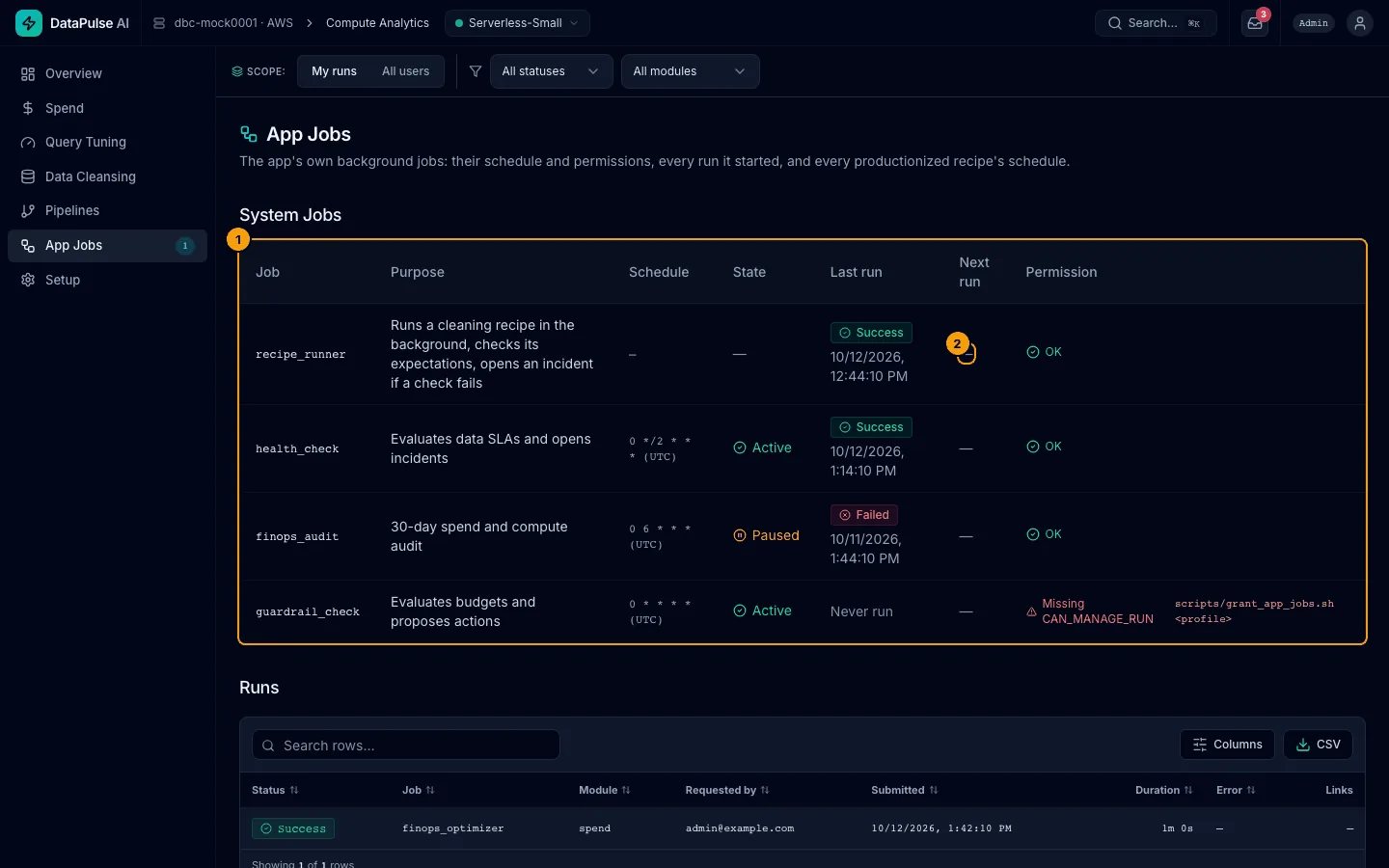
- System Jobs — the four bundle jobs. 2. Next run shows "—".
Runs#
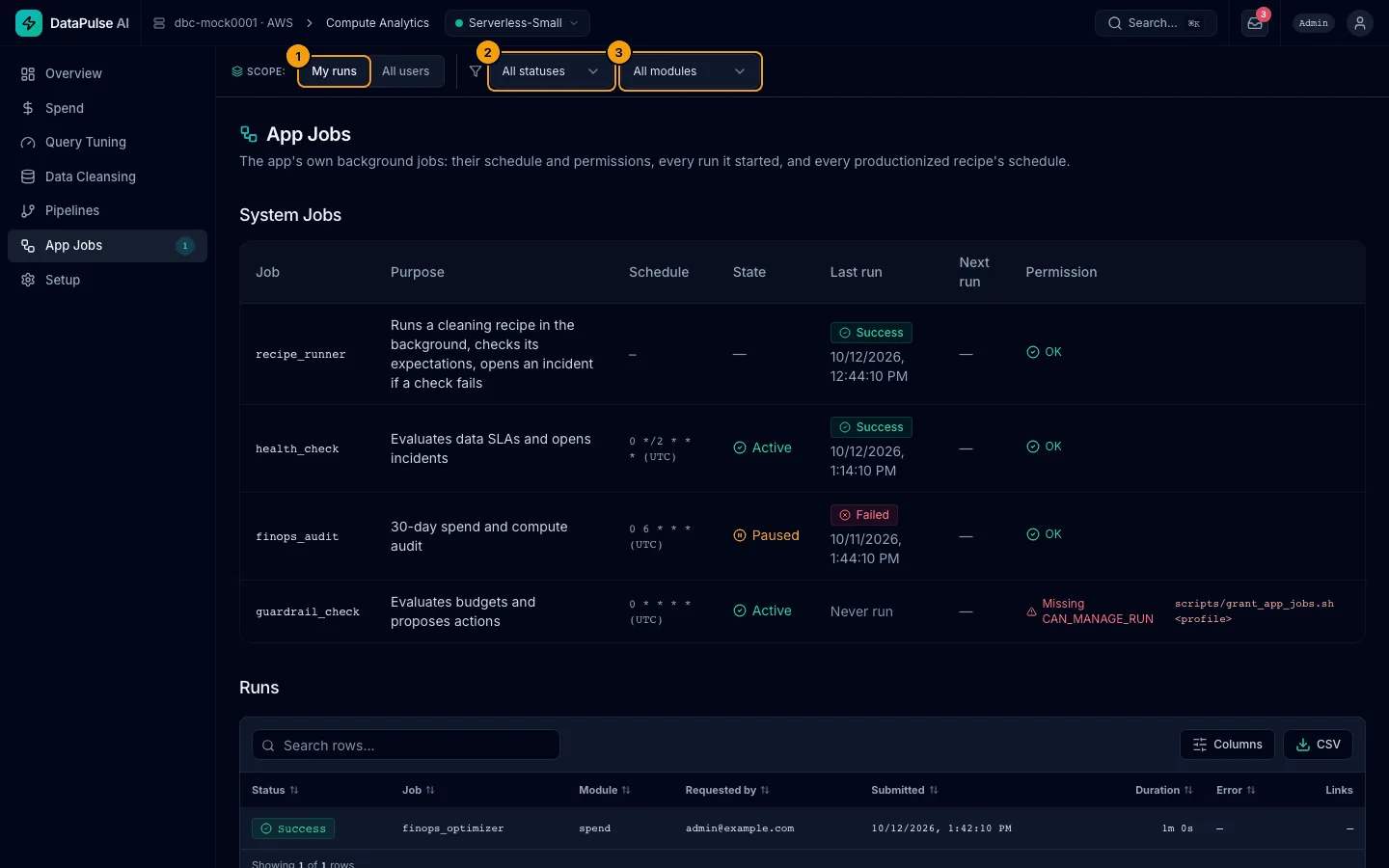
- My runs / All users. 2. Status. 3. Module.
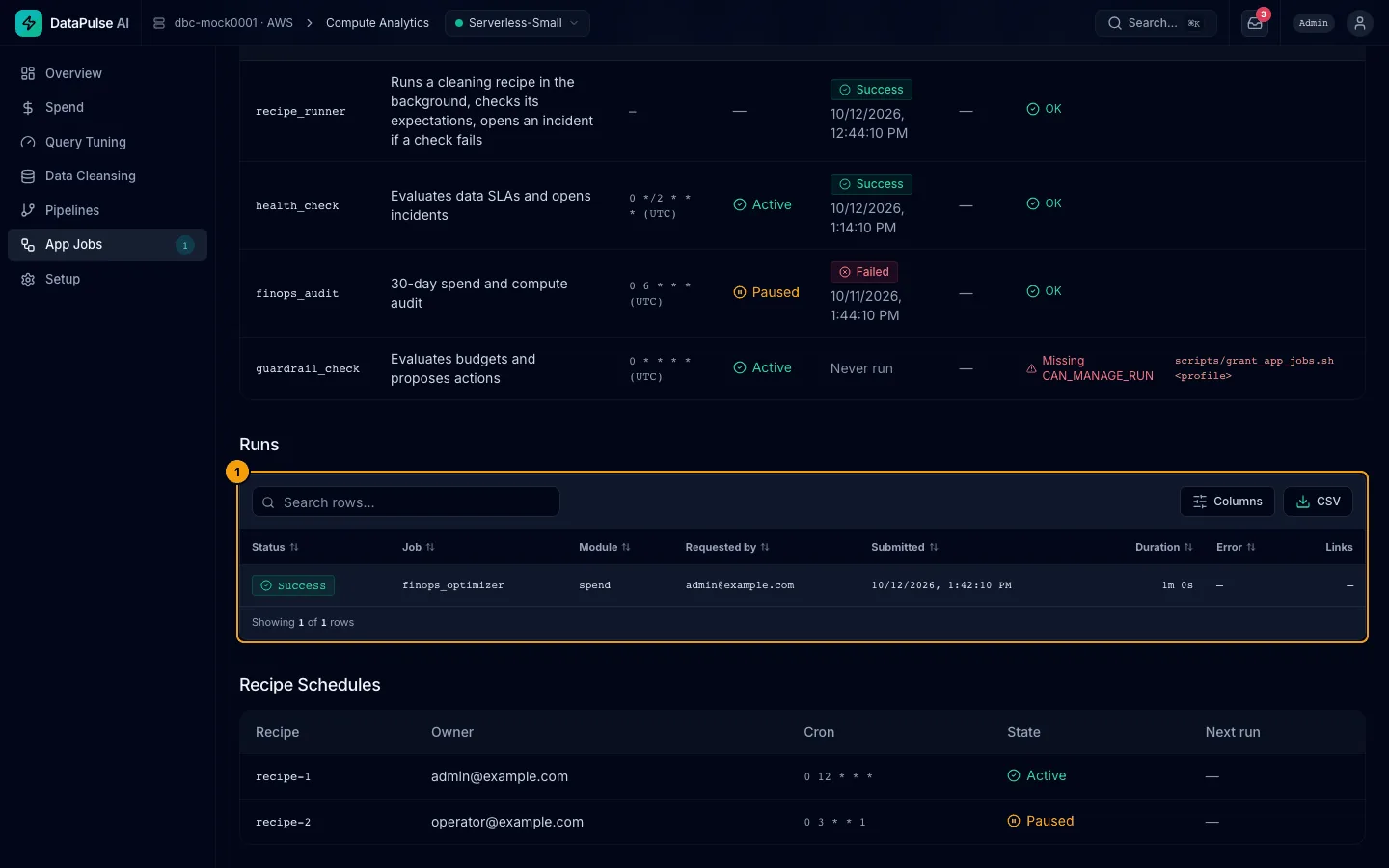
- Runs — every run the app started.
Every run the app has started: the ones you clicked into motion (for example, "Run as background job" in Data Cleansing) and, if you are an admin, everyone else's too. It is a table you can search, sort, choose columns for and export to CSV.
The filters sit in the scope bar at the top of the page, and they are kept in the address, so a reload or a shared link opens the same view:
- My runs / All users — switches between your own runs and everyone's. All users needs the admin role; anyone else sees it disabled with the reason.
- Status and Module filters narrow the list.
- A chip that reads
Run <id> ✕appears when the list is narrowed to a single run (the toast link does this). Click ✕ to see the rest.
Each row shows:
- the run's status as a word, an icon and a colour (Success, Failed, Canceled, Running, Pending);
- which job it was, which part of the app it came from, who requested it and when it was submitted;
- how long it took. A run that is still going shows "—" until it finishes;
- its error if it failed;
- Open in Databricks, which opens that exact run in Databricks. If DataPulse cannot work out where the run lives (for example, it cannot read the job), the row has no link rather than a wrong one.
Load older runs fetches more when there are any.
If nothing has run yet, the table says so: "No runs yet — background cleansing and health checks appear here." If your filters match nothing, it says that instead.
If you are not allowed to see runs, the section says Access denied and gives the reason; it has no retry button, because asking again as the same user gets the same answer. Any other problem (for example, the state tables are unreachable) shows a failure message with Try Again.
Recipe Schedules#
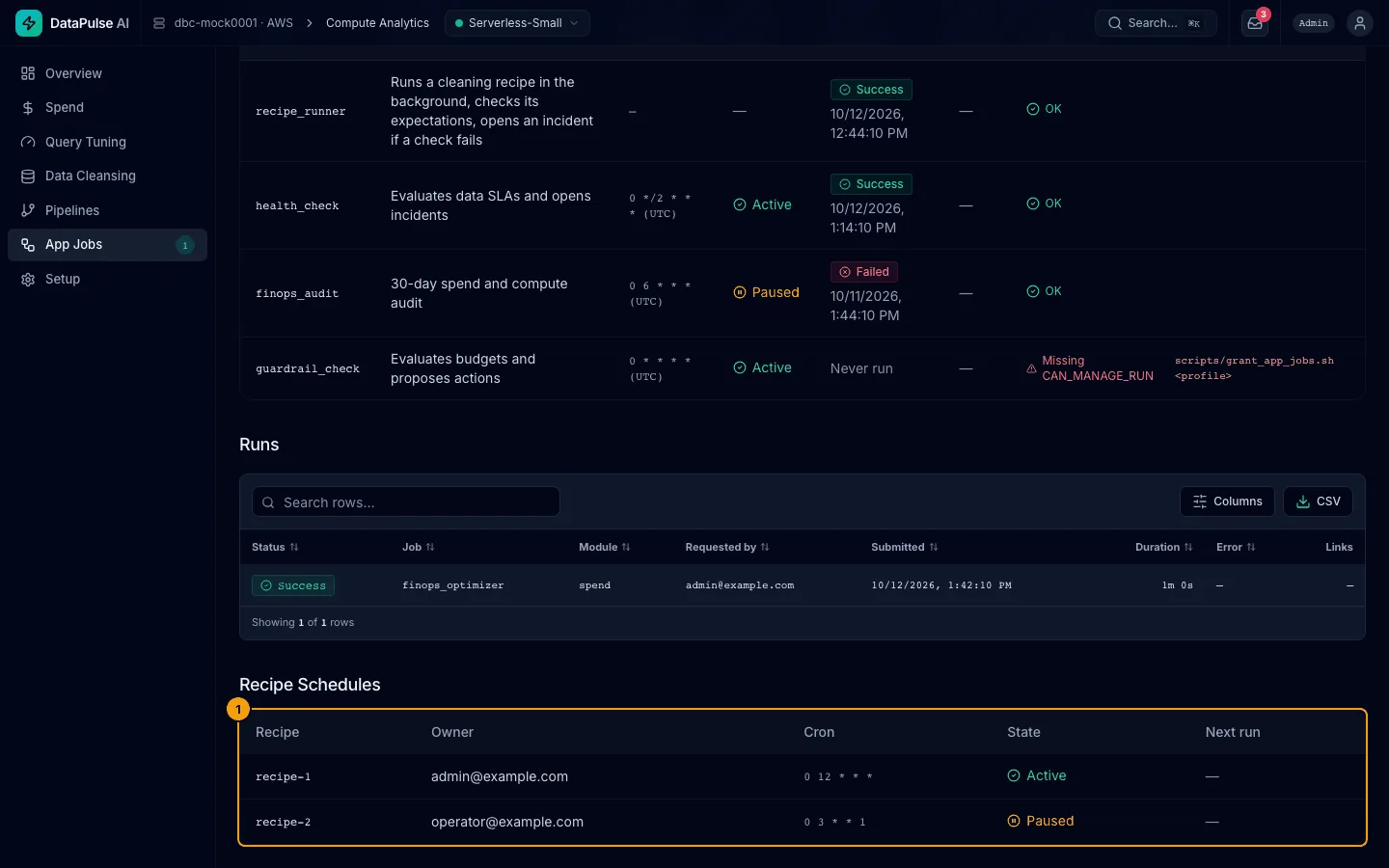
- Recipe Schedules — productionized recipes with owner and cron.
Every recipe you have productionized in Data Cleansing, with its owner, cron schedule and whether it is currently active or paused. Next run is "—" here too, for the same reason.
Walkthrough: find the job you just submitted#
- In Data Cleansing, run a recipe with Run as background job.
- A toast appears: Job submitted — view in App Jobs. Click it.
- App Jobs opens with the Runs table narrowed to that one run (you will see a
Run <id> ✕chip in the scope bar), so you do not have to hunt for it in the full list. Click ✕ to see every run again.
The sidebar badge#
The App Jobs item in the sidebar shows a small count while any run is still in progress. It checks in once when you open the app, again if you switch back to the tab after a few minutes away, and then every few seconds for as long as something is running — never while everything is finished, so it costs nothing when there is nothing to watch. If your role is not allowed to see jobs, the badge asks once and then stays quiet until you next switch back to the tab; it does not keep retrying.
Who can see what#
Everyone with access to DataPulse can open App Jobs and see their own runs, the System Jobs table and the Recipe Schedules table. Seeing everyone's runs (All users) needs the admin role — see Roles.