Getting started
What you need#
- The app URL from your admin (it ends in
.databricksapps.com). - A Databricks login at your company. You sign in with single sign-on. There is no separate password.
- Read access to the catalogs you want to look at. Ask your admin if a catalog is missing.
Take the tour#
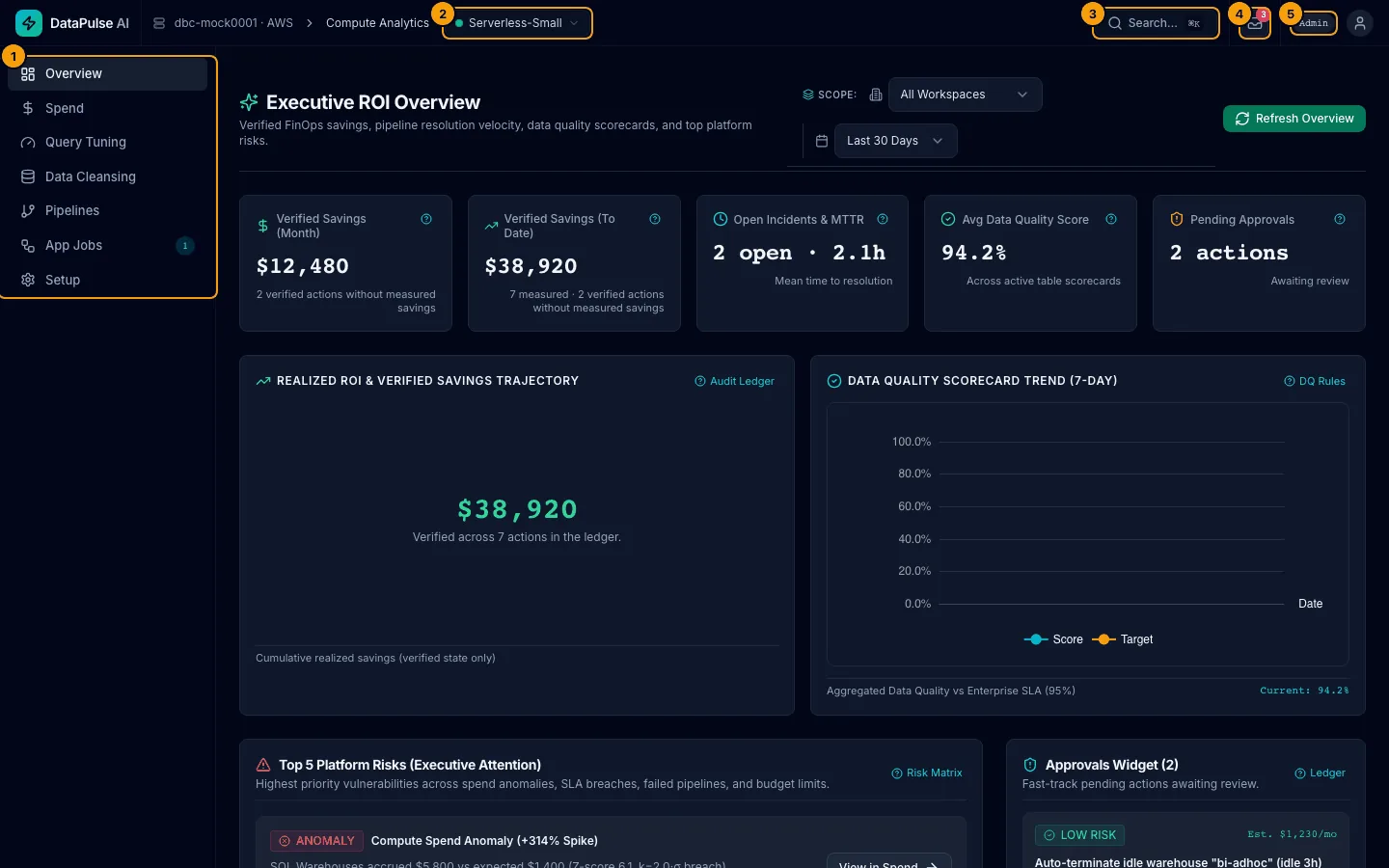
- Left navigation. Overview, Spend, Query Tuning, Data Cleansing, Pipelines, App Jobs, Setup.
- Compute menu. The SQL warehouse the app uses. A green dot means it is running. If it is stopped it starts on your first query, which can take about a minute. Open the menu (Select Compute) to choose another warehouse or Start a stopped one. If it reads No warehouses available, see the known limitation OI-221 in the guide README.
- Search… (⌘K, or Ctrl+K on Windows). Jump to any page or action from the keyboard.
- Actions inbox (the tray icon). Changes waiting for approval, and the history of changes. See Actions and approvals.
- Role badge. Your role: Reader, Cleansing engineer, Operator, or Admin. It decides what you can change. See Roles.
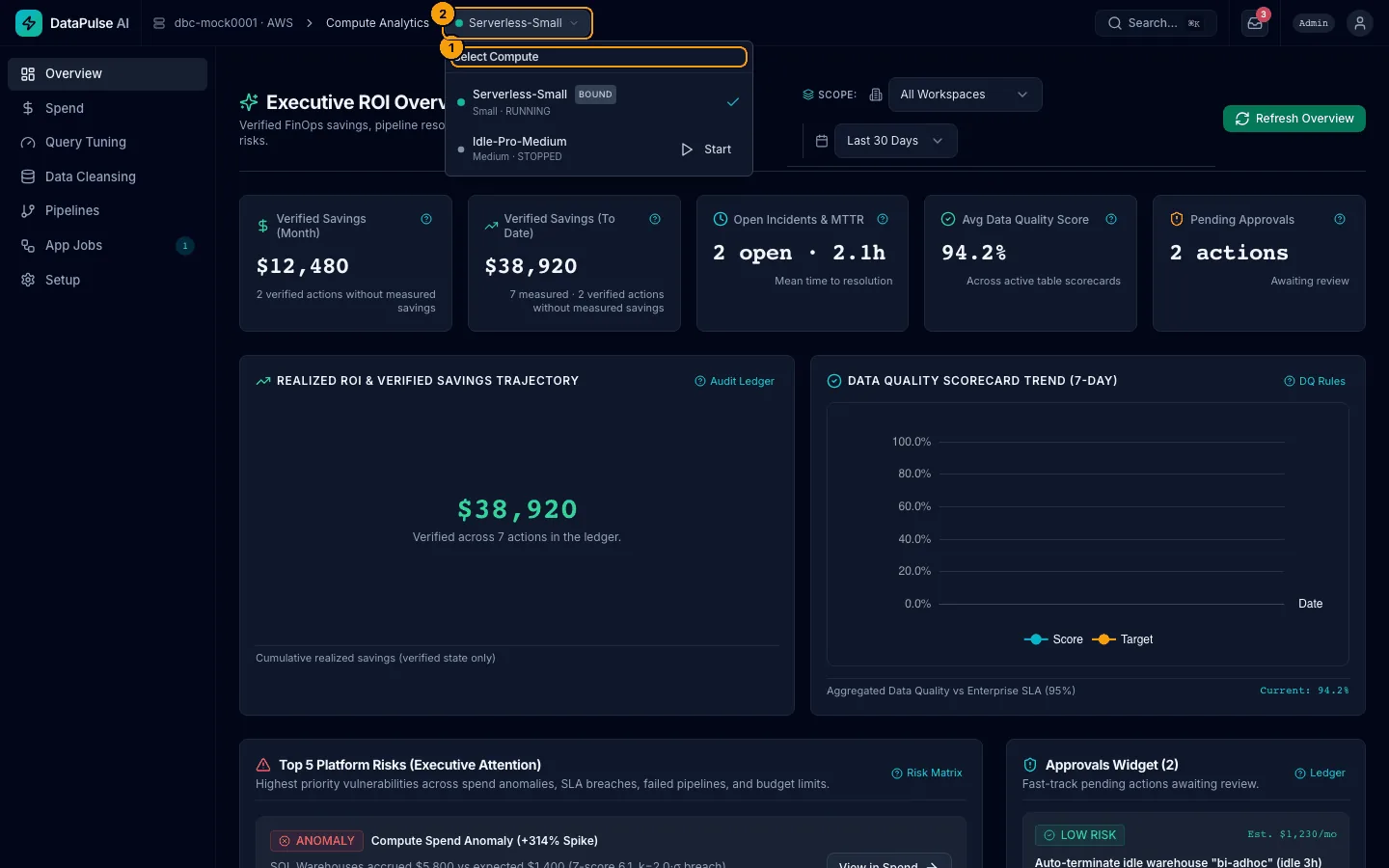
- Select Compute lists the warehouses you may use. 2. The trigger shows the one in use and its state.
The text next to the logo (for example dbc-mock0001 · AWS) is your workspace and cloud.
Choose your theme and see the settings#
Open Setup in the left navigation. It has one list of sections on the left:
| Section | What it does |
|---|---|
| Diagnostics | The readiness checklist (admins only). |
| Appearance | Pick Light, Dark, or System (System follows your computer). The app remembers your choice in your browser. Admins also see Workspace default, the theme people get until they choose their own. |
| Data conventions | The schemas that cleansing recipes read from and write to, and how the cleaned table is named. An example line shows the names the settings produce. |
| Spend source | Where Spend reads billing data: system billing, or a catalog that holds gold.finops_billing_summary. |
| User Access | Add and manage DataPulse roles. Admins only. |
| Models | Allow or block model serving endpoints for AI features. Admins only. |
| Integrations | Connect a Microsoft Teams notification destination. Admins only. |
Each section is shown in the admin guide. Everyone can read these settings. Only admins can change them: a change asks you to confirm, shows the old and the new value, and is recorded in the audit log. If you are not an admin you see the values and the note Only app admins can change settings. Each section has its own web address (for example …/#setup/appearance), so you can send a colleague a link to it.
Your first ten minutes#
- Open Overview. Read the five cards, then the Top 5 Platform Risks list. See Overview.
- Open Spend. Check the Data Source strip first. If it says Mock Data, ask your admin why it is not reading your billing data. See Spend.
- Open Pipelines. Look at Failing, SLA Breaches, and Wasted Cost. See Pipelines.
- Open Data Cleansing, pick a table, and read its Health score. See Data Cleansing.
If the app looks empty or shows an error#
Check Troubleshooting. The most common causes are a stopped warehouse, a missing catalog permission, and a role that is too low for the button you pressed. Admins can open Setup for a checklist with copy-and-paste fixes.