Overview
The Overview is the first page you see. It answers: is DataPulse paying for itself, and what needs attention today? The page title is Executive ROI Overview.
How it works#
The cards read from the DataPulse action ledger, the incident list, and your data quality rules. Each card has a How calculated link that opens its source.
Walkthrough: read the page#
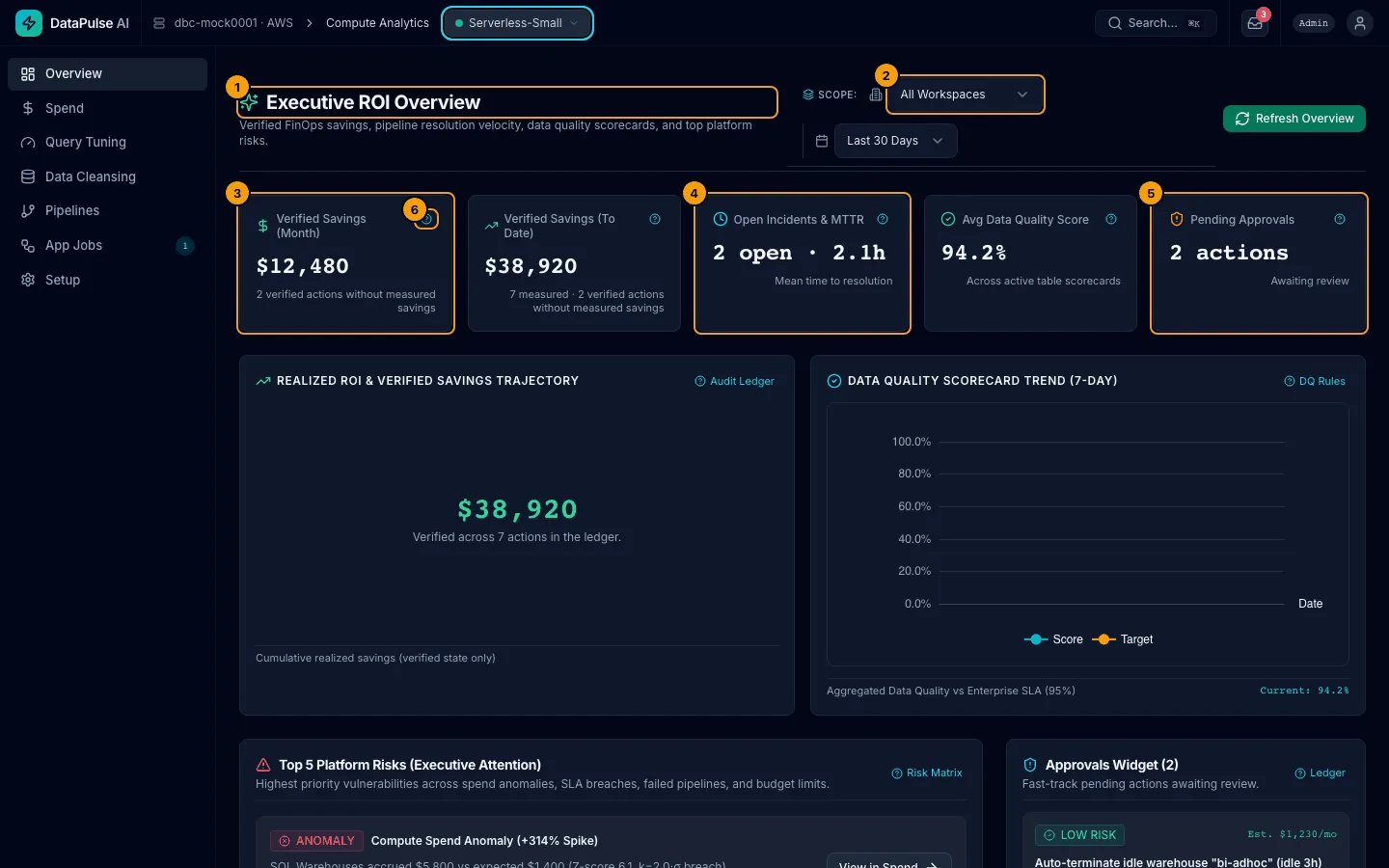
- Executive ROI Overview. Page title.
- Scope. Pick All Workspaces or one workspace, and the time window (for example Last 30 Days). Refresh Overview reloads the numbers.
- Verified Savings (Month). Money saved this month by actions that were measured afterwards.
- Open Incidents & MTTR. How many incidents are open, and how fast the team closes them.
- Pending Approvals. Changes waiting for a decision.
- The ? icon on a card opens How calculated: the source table or query. (On a wide card the words How calculated show beside the icon.)
What each number means#
| Number | Meaning | Where it comes from |
|---|---|---|
| Verified Savings (Month) | Dollars saved this month by actions in the verified state. Estimates do not count. An action becomes verified once its observation window has passed and someone presses Verify on it in the Actions inbox. | datapulse_app.state.actions |
| Verified Savings (To Date) | The same, since you installed. The subtitle shows how many verified actions are behind it. | datapulse_app.state.actions |
| Open Incidents & MTTR | Incidents not yet resolved. MTTR is the mean time to resolution, in hours, compared with a baseline. | datapulse_app.state.incidents |
| Avg Data Quality Score | The average pass rate of your data quality rules across monitored tables. | datapulse_app.state.dq_rules |
| Pending Approvals | Actions in the proposed state, with their combined monthly impact. | datapulse_app.state.actions |
Below the cards, the left panel shows the verified savings to date and how many verified actions are behind it, and the right panel charts the 7-day data quality trend against a 95% goal.
Walkthrough: act on a risk and an approval#
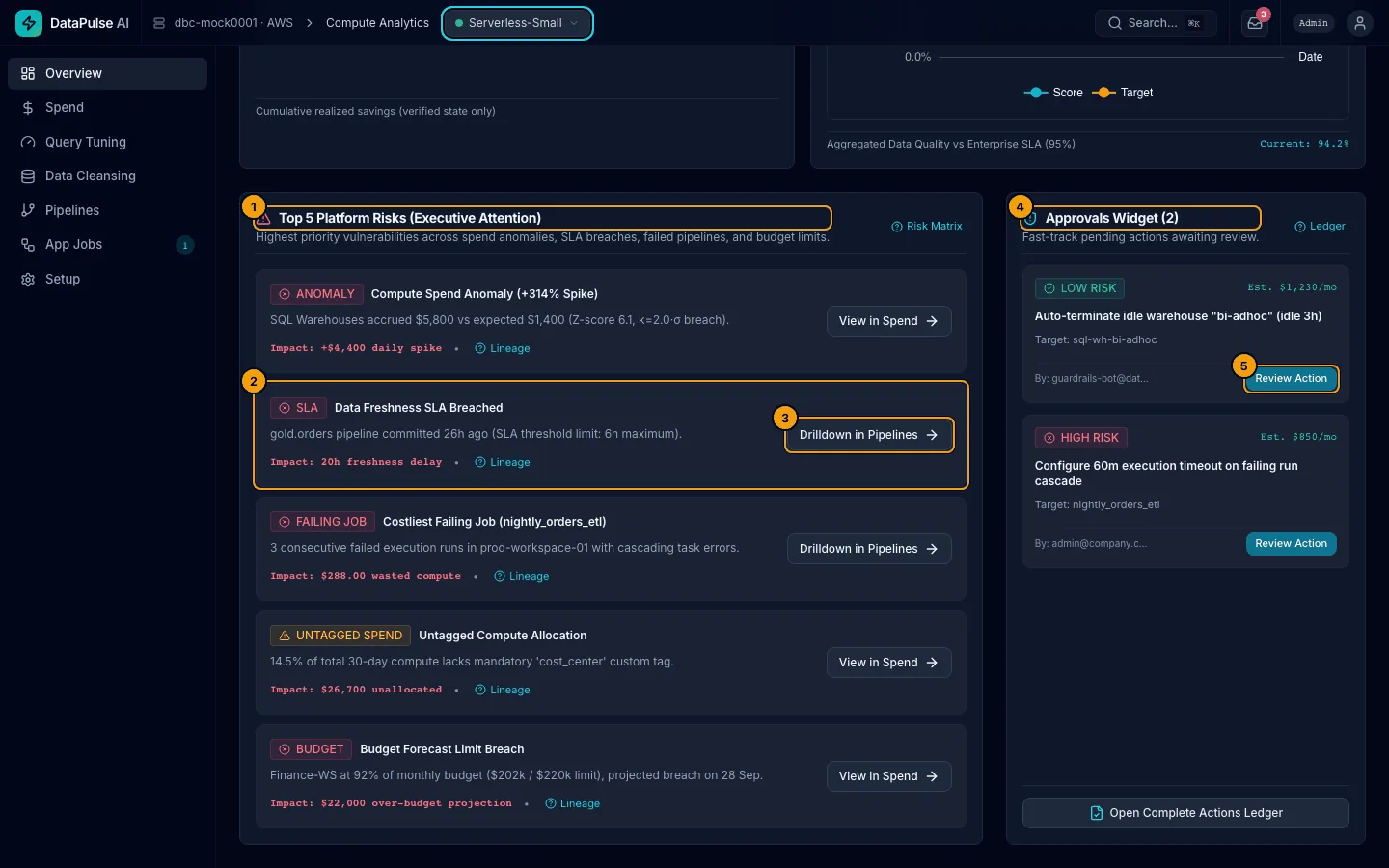
- Top 5 Platform Risks. Each item has a severity, a short reason, and its impact.
- One risk, for example a data freshness SLA breach.
- Drilldown in Pipelines (or View in Spend). Opens the page that owns the risk.
- Approvals Widget. Actions waiting for a decision, with a risk level and an estimated monthly saving.
- Review Action. Opens the approval dialog.
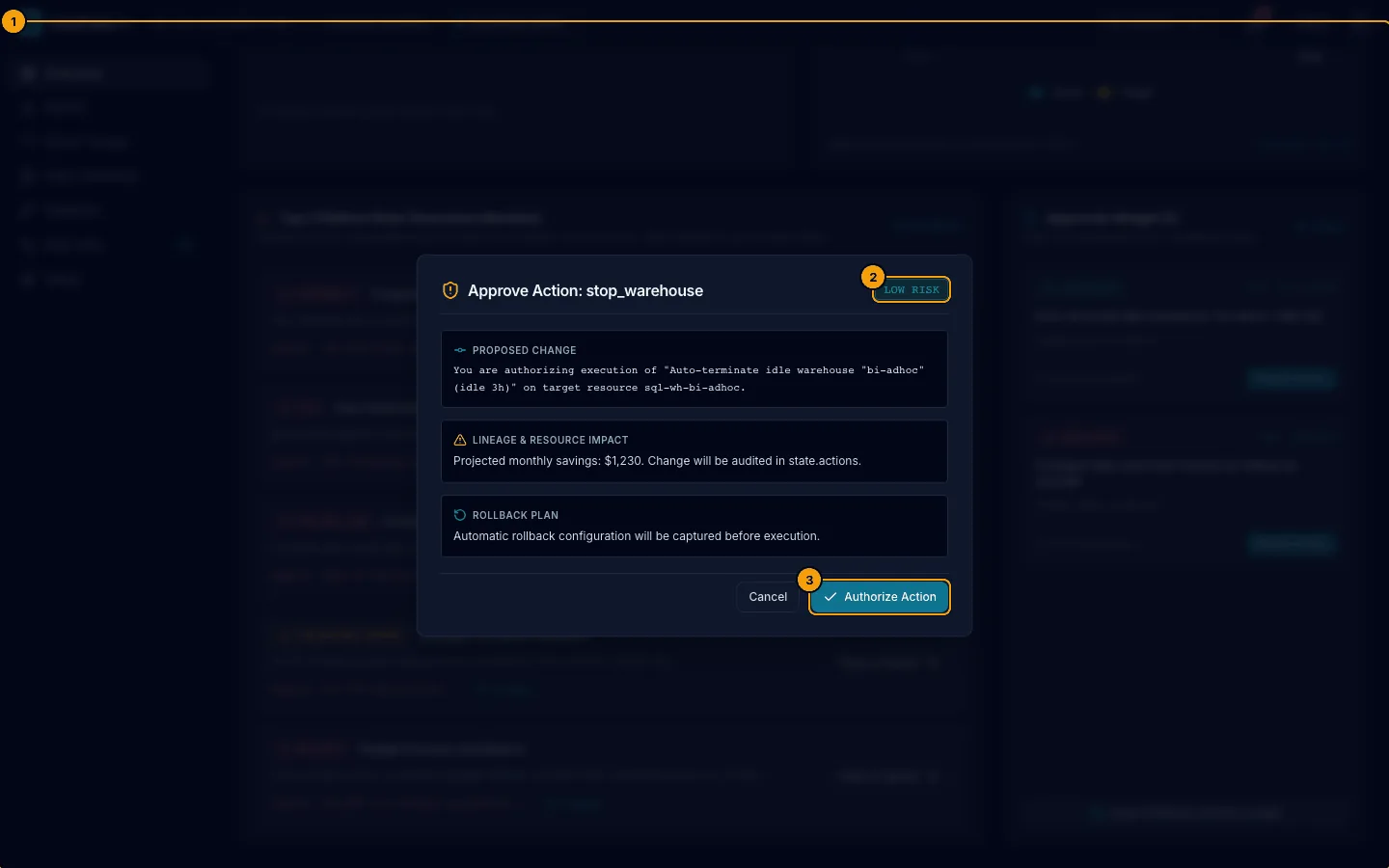
- The dialog shows the change, the risk, the impact, and how to undo it.
- LOW RISK actions can be approved by an operator or admin. HIGH RISK actions need an admin.
- Authorize Action approves it. This is the only primary button, so you cannot press the wrong one.
Approving does not run the change on its own; see Actions and approvals for execute and rollback.
Empty, denied, and failed states#
- No Critical Platform Risks Detected and No Pending Approvals mean there is nothing to act on.
- Access Denied to Executive Overview means your account has no DataPulse role. Ask an admin to add you to a group. See Roles.
- Failed to Load Executive Overview shows an error code and a retry button.