Spend
Spend answers three questions: where did the money go, is it going to break the budget, and what can we switch off? In the left navigation it is Spend.
How it works#
DataPulse reads your billing and compute system tables. Real billing rows hold DBUs, not dollars, so cost is DBUs multiplied by the list price. Every query is limited to a date range so it stays cheap.
Data source#
The Data Source strip at the top says which table feeds the page.
| Label | Meaning |
|---|---|
| Gold Mart | A curated billing summary table in the catalog your admin chose as the Spend source. |
| System Billing | Your real system.billing.usage table. |
| Mock Data | Sample data. This is not your bill. It appears when the real table cannot be read. |
The source is a workspace setting, not something you pick per visit: your admin chooses it on Setup → Spend source (a "Change in Setup" link sits beside the badge). Picking a different catalog elsewhere in the app never changes what Spend shows. If the chosen catalog has no billing summary, the page falls back to system or sample data and says so. Ask your admin to run the grants if you expected real data.
Walkthrough 1: read the KPI row#
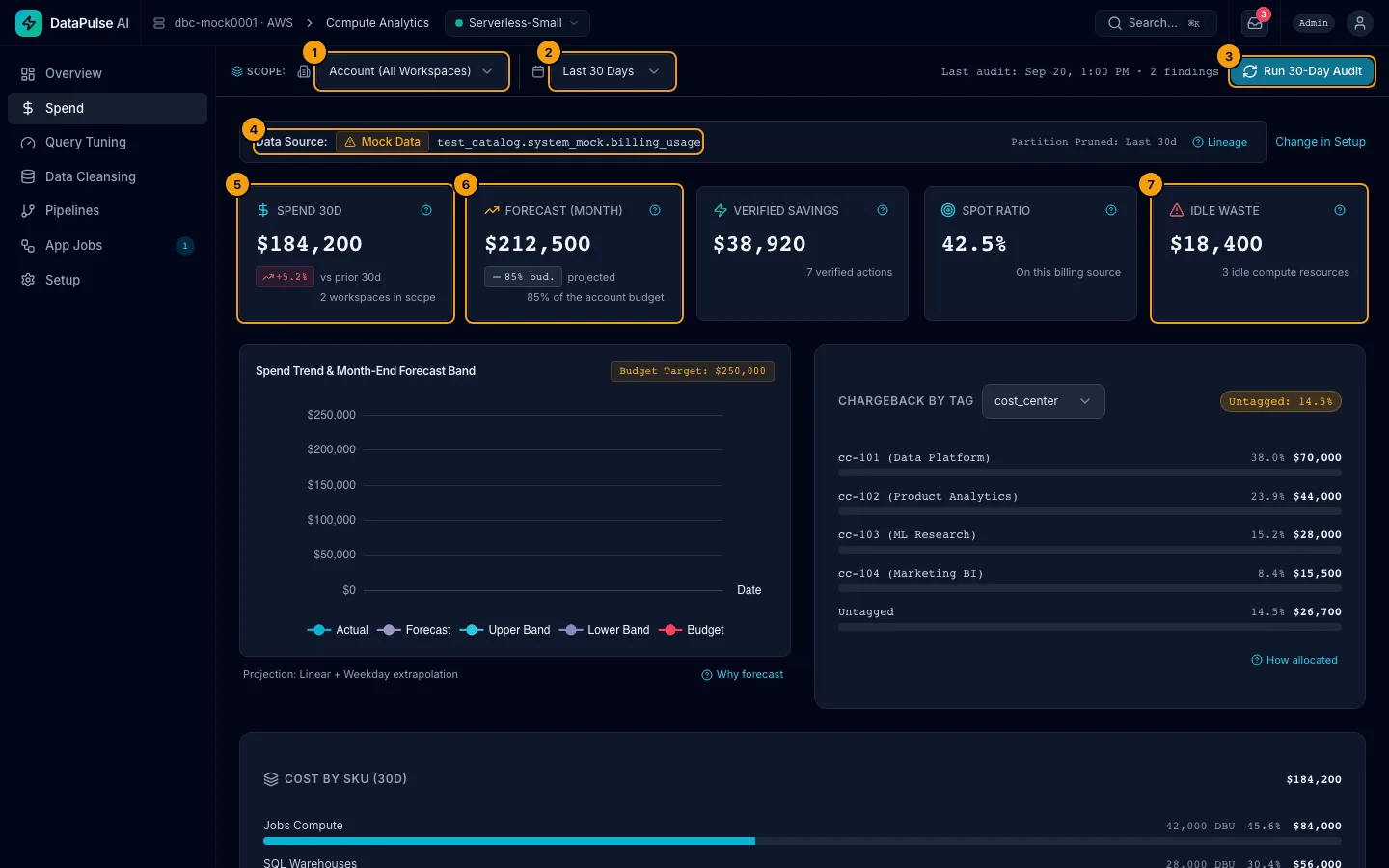
- Scope. Account (All Workspaces) or one workspace.
- Time window. For example Last 30 Days.
- Run 30-Day Audit. Starts the audit job. Operators and admins only.
- Data Source strip. See above. Partition Pruned: Last 30d means only the last 30 days were scanned.
- SPEND 30D. Total cost for the window.
- FORECAST (MONTH). Projected month-end cost.
- IDLE WASTE. Cost of compute that ran with no work.
What each number means#
| Number | Meaning | How it is calculated |
|---|---|---|
| SPEND 30D | Cost in the last 30 days, with the change against the 30 days before. | Sum of DBUs × list price. |
| FORECAST (MONTH) | Where the month will end, and how much of the budget target that is. | Straight-line trend plus a weekday pattern. Why forecast shows the method. |
| VERIFIED SAVINGS | Savings from actions confirmed by a later measurement, and how many actions. | Action ledger, verified state only. |
| SPOT RATIO | Share of compute DBUs that ran on spot instances. On system.billing.usage the card reads Not available and says why, because that table has no spot field. | Spot DBUs ÷ total compute DBUs, on a billing source that records spot. |
| IDLE WASTE | Cost of compute that kept billing while it consumed no DBUs, and how many clusters. | Billing rows in the window with zero DBUs used and cost above zero. |
| Cost by SKU | Cost, share and DBUs of each kind of compute (Jobs Compute, SQL Warehouses, All-Purpose, DLT Pipelines) over the selected range, costliest first. Anything else is Other. The total is the sum of the rows. | DBUs × list price, grouped by SKU category. How calculated shows the exact query. |
| Untagged (chargeback) | Share of cost with no value for the chosen tag. | Cost with no tag ÷ total cost. |
| Z-score (anomalies) | How far a day's spend is from normal. A spike is flagged above the rolling 30-day mean plus 2.0 standard deviations (k=2.0·σ). | Statistics only. No AI is used. |
Click Source on a card for the exact table and query.
Walkthrough 2: split cost by team (chargeback)#
- Find CHARGEBACK BY TAG.
- Pick a tag in the list (for example
cost_center). - Read each value's share and dollars. The Untagged chip shows how much cost has no owner.
- Click How allocated to see how tags were read from your billing rows.
A high untagged share means you cannot bill or question the owner. Fix it by tagging compute, not by changing DataPulse.
Walkthrough 3: check a budget and act on a breach#
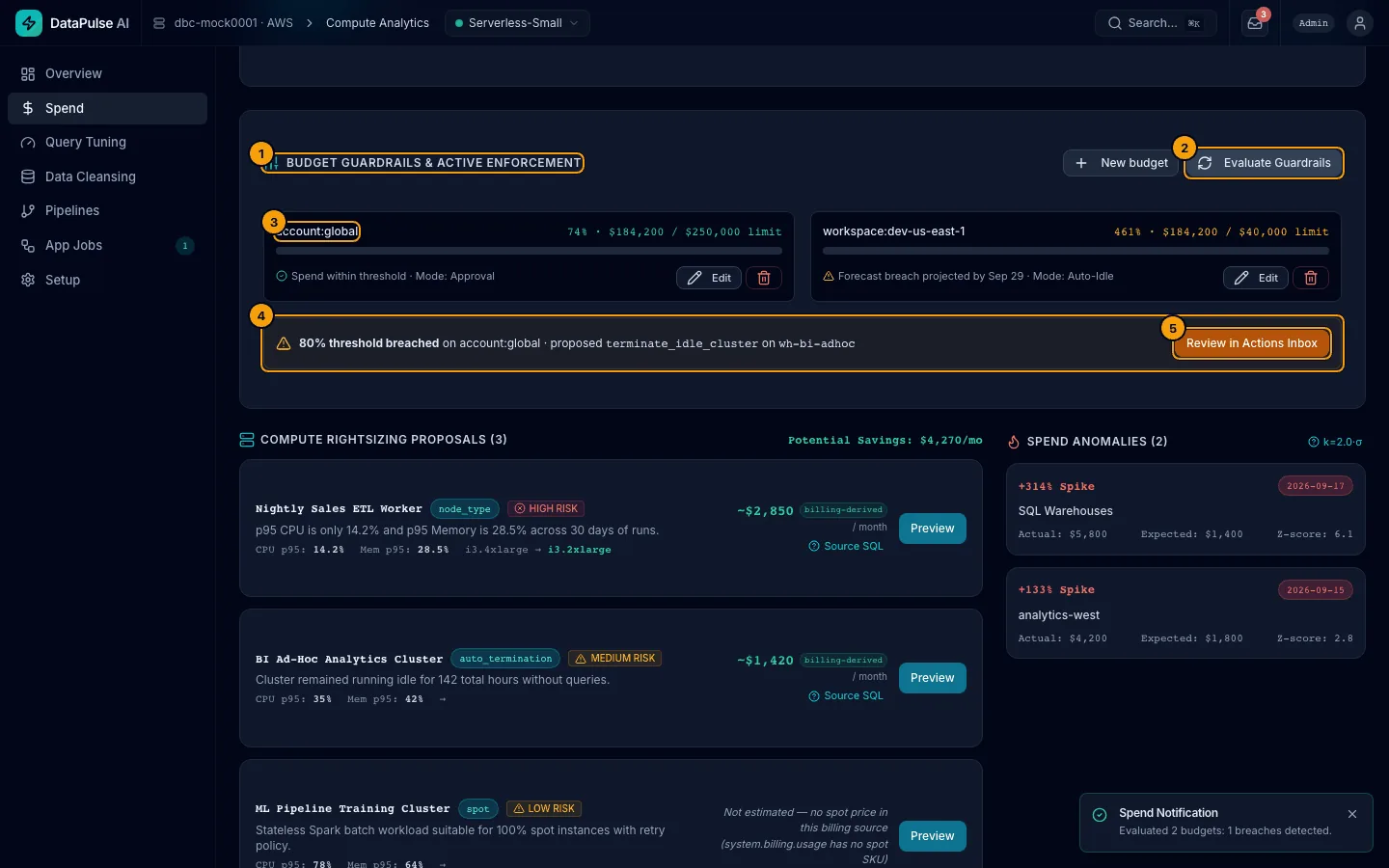
- Budget Guardrails & Active Enforcement. The chip shows the active mode: Approval, Auto-Idle, or both.
- Evaluate Guardrails. Checks every budget now. Operators and admins only.
- Each budget shows percent used and the limit, for example
92% · $202k / $220k limit, and a forecast breach date if one is coming. - After you click Evaluate Guardrails, each breach is listed under the budgets, for example 92% threshold breached on account:global · proposed
stop_warehouseon<warehouse>, or no idle resource found — alert only when there is nothing to act on. When DataPulse proposes a fix, such as stopping a warehouse, it has a daily saving and a risk level. A warehouse stop is low risk only when DataPulse found no running or queued query on it in the query history; otherwise it is high risk and needs an admin. It is checked again at execute. A cluster termination is always high risk, because idleness cannot be proven live: use auto-termination to reclaim idle clusters. Inauto_idlemode DataPulse only proposes cluster terminations. - Review in Actions Inbox opens the Actions inbox, where the proposal waits for a decision. See Actions and approvals.
Budgets themselves are managed by an admin on this panel: New budget (or Create budget when there are none) opens the form, the edit control on a budget changes it, and the delete control removes it after a confirmation. Everyone else sees the budgets and the form controls disabled, with the reason. Editing and deleting from the screen have not yet been run against a live workspace (OI-242). See Budgets and guardrail modes.
Walkthrough 4: rightsize compute#
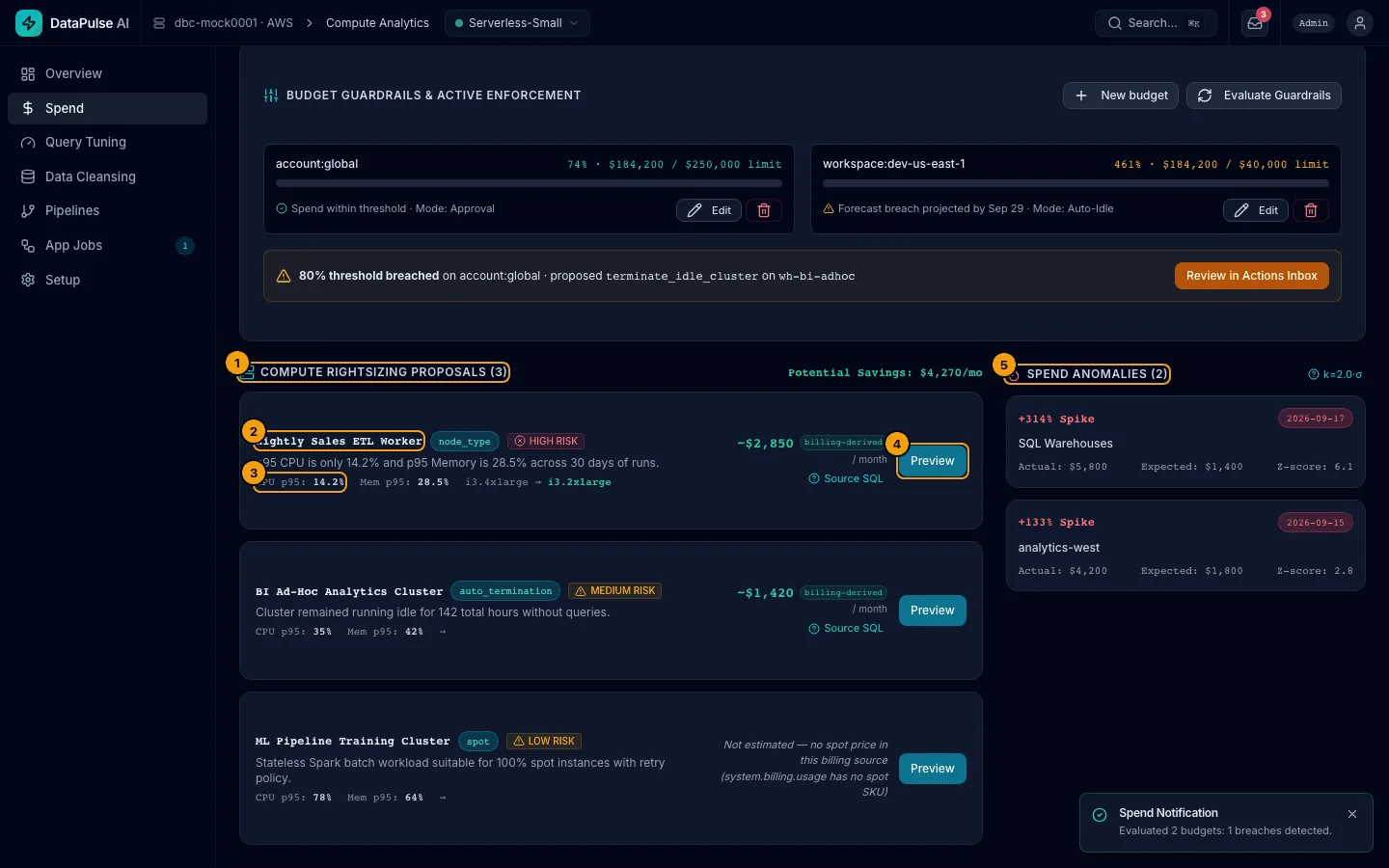
- Compute Rightsizing Proposals lists changes with the potential monthly saving.
- Each proposal names the resource, the kind of change (for example
node_type,auto_termination,spot), and a risk badge. - Read the evidence: CPU p95 and Mem p95 are the busiest 5% of the last 30 days. Low numbers mean the machine is bigger than it needs to be.
- Preview opens the confirm dialog.
- Spend Anomalies shows unusual days with the actual and expected cost.
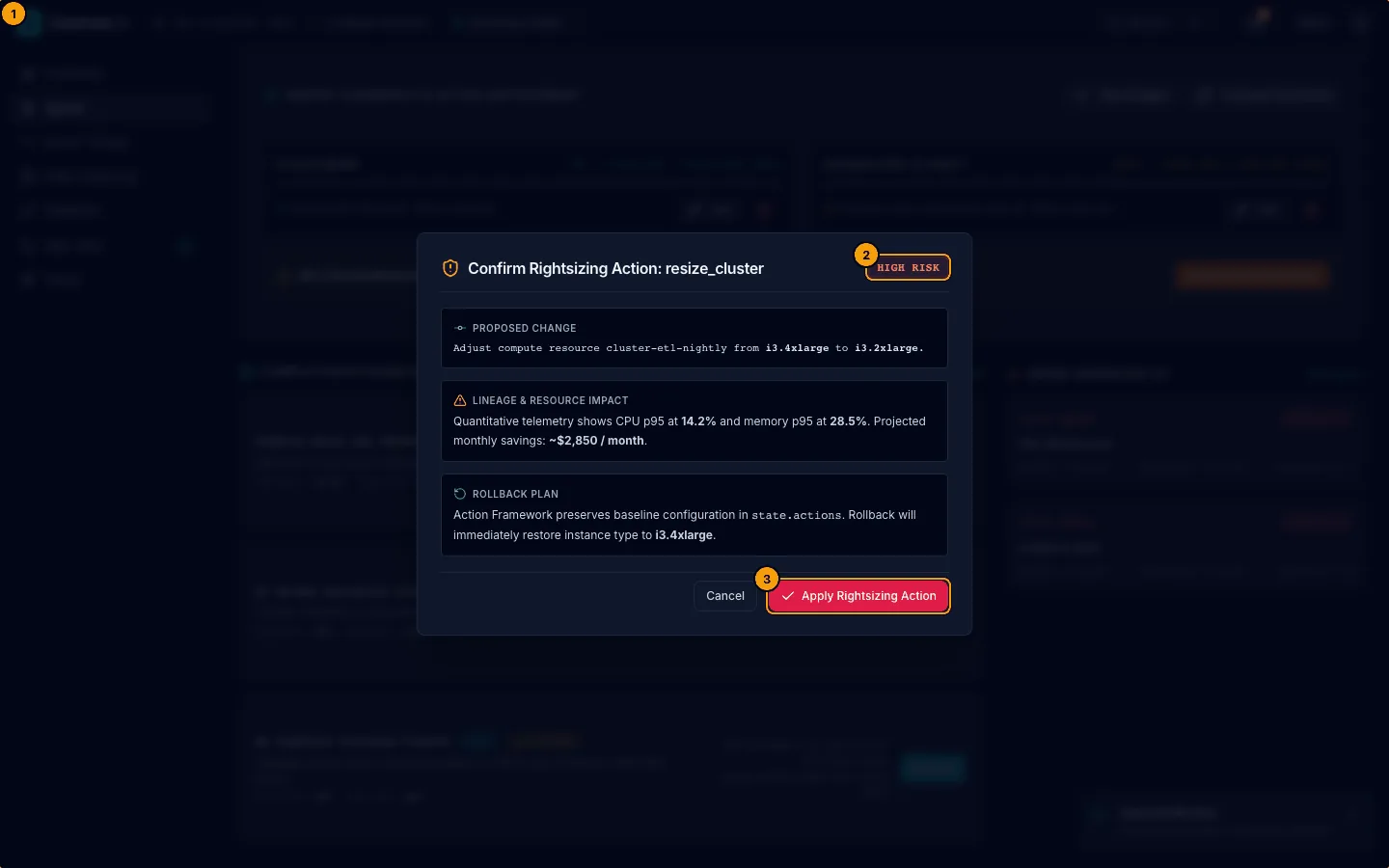
- The dialog shows the change, evidence, monthly saving, and how to roll back.
- HIGH RISK means an admin must approve it.
- Apply Rightsizing Action sends it through the approval path.
Known limitations#
| Limit | Open item |
|---|---|
| Compute Rightsizing Proposals, IDLE WASTE and the cluster side of the guardrails read classic-compute system tables. A workspace with only serverless compute has no data for them. | OI-169, OI-200 |
| The Spend Anomalies list flags individual rows, not whole days, so it can be long and its Expected column is a rough baseline. | OI-219 |
| Editing and deleting a budget from the screen has not been run against a live workspace. Creating one was. | OI-242 |
Empty, denied, and failed states#
Cost by SKU shows a skeleton while it loads. With no billed usage in the range it says so. If billing is not readable it shows the reason and the GRANT that fixes it. If the request fails it shows Retry.
If your install limits you to some workspaces (DATAPULSE_WORKSPACE_SCOPE), every number on this page covers only those workspaces. Choosing a workspace outside your scope, or a scope that is not valid, shows Outside your workspace scope instead of any spend. Ask an admin to check the Workspace scope item in Setup.
A panel that cannot load shows the cause and a fix, for example Compute Metrics Query Error. A denied panel names the role you need. See Troubleshooting.